Land Registry Logo

Technical Manual Part 2 - Version 20.0

Release date: 26 March 2013

1 Introduction

1.1 Purpose

The purpose of this manual is to show how to effectively access and use Land Registry Business e-services.

1.2 Intended readership

This manual is intended for users who have signed a Network Access Agreement (NAA) and wish to use Network services. However all users may find the instructions helpful. The functions available to you in the system will depend on your role and the agreement signed by your organisation.

1.3 How to use this manual

This manual is a reference manual. It is structured to enable you to look up the parts that explain how to perform specific tasks within the system. It has 16 sections.

  • Section 1 – Outlines the purpose of this manual and how to use it.

  • Section 2 – Introduction to the system.

  • Section 3 – First time login.

  • Section 4 – Administrative services available to different user types.

  • Section 5 to 7 – Instructions on lodging applications, the error messages you may encounter, what they mean and how you deal with them.

  • Section 8 – Network services.

  • Section 9 – General facilities.

  • Section 10 – Provides information on additional support for users.

  • Section 11 – Provides details of training and other available resources.

  • Section 12 – Covers troubleshooting issues, including information on technical support and registration advice.

  • Sections 13 to 16 – Covers the services available through Business Gateway and how to use them.

Guidance on how to apply for access to the portal is included in the Portal Guidance Notes. Technical, security and requirements for participating in the Land Registry Business e-services are included within the Technical Manual Part 1 and NAA.

1.4 Definitions

The following abbreviations have been used throughout this manual.

  • NAA – Network Access Agreement.

  • LRD – Land Registry Direct.

  • VDD – Variable Direct Debit.

  • e-document – Electronic document.

  • e-CSF – Electronic Charge in Standard Form.

  • CMS – Case Management Systems which includes all types of operating system seeking to interface with Business Gateway.

  • BG – Business Gateway – A link by which the CMS accesses Land Registry's online services.

  • Portal – Designated part of Land Registry website containing all external customer electronic Business e-services.

  • Administrator – The person appointed by the subscriber to administer access to the Land Registry Network for their organisation.

  • Subscriber – An organisation that has applied for and been granted a NAA.

  • Manual – Technical Manual (Part 1 and Part 2).

  • Business unit – An organisation or a part of an organisation that operates in its own right as a legal entity.

  • Financial administrator – A person authorised by the subscriber to access, view and download online VDD account data for all or designated VDD accounts associated to the portal.

1.5 Updates/future services

Land Registry will update this manual to include future services and enhancements. The most up-to-date version will be available on the Land Registry website.

2 Introduction to the system

2.1 Overview

Land Registry has developed a user-friendly portal to all its web-based services. As we continue to develop new products the portal will give you access to an ever-expanding range of services.

2.2 System availability

Details of when Business e-services are available can be found once you are logged into the portal.

2.3 Services available

The services available within Business e-services will depend on the agreements with Land Registry, the type of role you have been allocated and the services available to that role.

Listed below are the main services available to each role. The services are described in more detail later in the manual. Click on the links below to navigate to each service.

2.3.1 Administrator

As an administrator you will have access to:

  • My Portal Home

  • Administrative services

2.3.2 User

As a user you will have access to:

  • My Portal Home

  • Information services

  • Land Charges services

  • Network services

  • General facilities

  • Administrative services

  • Lenders services (information not included in this manual)

2.3.3 Responsible persons (including deputy responsible person)

As a responsible person you will have access to:

  • My Portal Home

  • General facilities

  • Administrative services

2.3.4 Financial administrator

As a financial administrator you will have access to:

  • My Portal Home

  • General facilities

  • Administrative services

3 First time login

3.1 Overview

Before a user can access the services they will need to login to the system and set their own security credentials. This is to identify users to the system and allow them to create their own passwords and shared secrets, reducing the risk of fraudulent activity and misuse of the system.

3.2 Username and temporary password

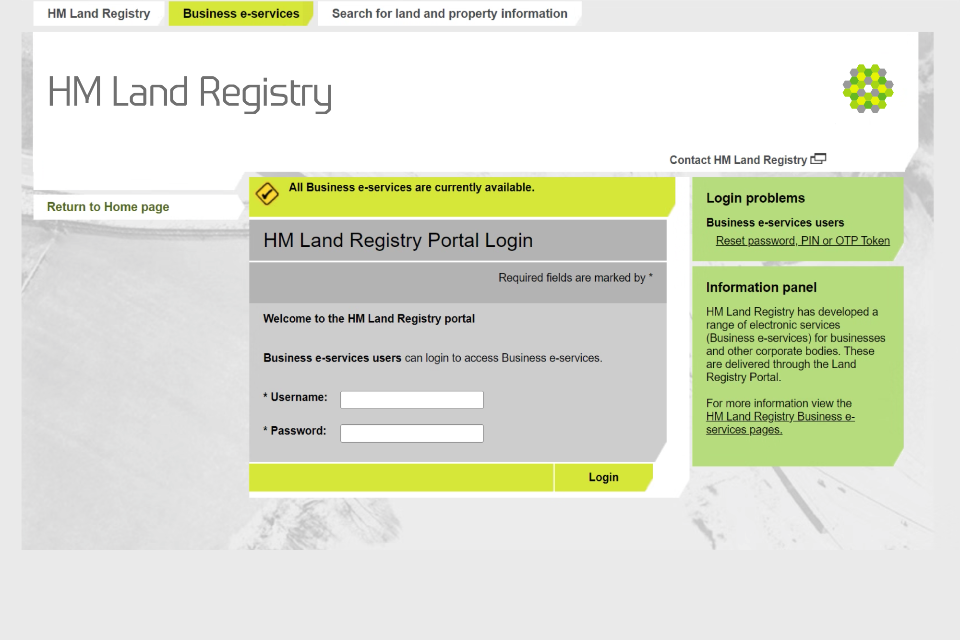
You will be supplied with a username and temporary password from Land Registry either by email or post depending on how you have requested to receive this information. You must enter the information in the portal login screen within Business e-services.

3.3 Change password

As this is the first time you have accessed this service you will be prompted to change your temporary password to one of your choice.

To assist in creating a password the following rules need to be followed:

  • must be a minimum of eight and maximum of 20 characters in length

  • must be a combination of alphabetical and at least two numerical characters

  • the new password cannot be the same as the current password

  • the new password cannot be identical to the username

  • the new password shall be case sensitive.

3.4 Shared secrets

You must capture three items of information that can be used to authenticate your access in the future. The questions available to choose from are shown below. The answers should be known only to you and can be used to allow you to reset your password should you forget it. It will also reduce the risk of fraud and misuse of the system.

Select three different questions (see list below), and supply a unique answer to each following the rules shown on screen.

Questions available to choose from:

  • name of your favourite teacher/first teacher

  • place where your favourite memory took place

  • favourite fictional character

  • somewhere you would like to visit that you have never been to

  • your ambition.

To assist in answering any of the above questions the following rules need to be followed:

  • must be at least four characters in length

  • must not exceed 251 characters in length

  • must be unique

  • must not contain a word that is already contained in the question.

3.5 Administrator – additional login details

If you are an administrator you will have additional login details to complete to authenticate your access to the system. This will involve the use of a One Time Password (OTP) security token that Land Registry will issue to you. An OTP security token is a device that displays a random number sequence that changes each time the button on the token is pressed. This number sequence must be entered each time you log in as an administrator.

Note: If you have previously been issued with a USB security token, this should not be used as it has been superseded by the OTP security solution.

3.5.1 Security warnings

Security warnings may be displayed depending on how your organisation's system is set up. To complete the login process you will need to confirm you trust the site.

3.5.2 Using an OTP security token

Use the OTP security token to generate a one-time token number. To do this, press and hold down the button on the token until the status bar fills the display. The security token generates and displays an eight-digit number sequence that is unique, time-limited and can be used only once. Enter the number from the display on the token on to the login screen where prompted.

Press the button again to turn off the token. The token turns off automatically after approximately 60 seconds of inactivity. Please note, if the button on the token is pressed again, a new number will be generated – it is not possible to redisplay the original number.

On successful login you will be presented with your portal home page where you can access the services you have the authority to use. If you are unable to successfully login at this stage you will need to contact a Land Registry administrator at our Customer Support.

OTP token serial number

Each token has a serial number that is listed on a sticker on the back. You should have this number on hand if you are contacting our Customer Support with any problems. If the sticker has come away the serial number can be viewed on the token's display. Press and hold down the button on the token until the status bar fills the display. A number sequence will be shown. While this sequence is displayed, press and hold down the button again until the text 'V Sn' is displayed. The serial number appears as scrolling text in two parts – five digits preceded by the line number. The two sets of five digits together make up the serial number.

Resetting the token

If the token button has been pressed more than ten times without using a sequence for authentication, the token can no longer authenticate your access to the system.

If you have logged in and set your shared secrets, you will be able to reactivate the OTP token from the login screen under the link 'Reset OTP token'. You would select the radio button beside One Time Password and answer two of your shared secrets chosen by the system. Once it is successfully reset, confirmation will be displayed.

If you have not yet been through the first time login process and set your shared secrets, you will need to contact Customer Support who will reset the token.

3.5.3 My Portal Home

Once you are logged into the portal, My Portal Home screen will be displayed. From this screen you can gain access to services you are authorised to use.

Administrators, authorised users, responsible persons; including deputy responsible persons, and financial administrators can view:

  • the user ID you are logged in under

  • the date and time you last logged in

  • today's date

  • service hours

  • notification of new messages and PDF downloads (if applicable to their role).

Users can also view:

  • despatch address

  • default VDD account that all charges will be debited from

  • documents due for deletion.

If the VDD account shown has been suspended or cancelled, a message will appear at the foot of the screen. Before using any fee-payable services, you must either choose another VDD account or contact your administrator.

4 Administrative services

The 'Administrative Services' signpost is available to all users; however, the functions available to each user will be dependent on the user account and role.

4.1 User accounts and role

4.1.1 Administrator

An administrator will have the responsibility of creating and managing user accounts within the portal to allow users to access Business e-services.

From the drop down menu under the 'Administrative Services' signpost an administrator will have the following functions.

Click on the links below to find out more.

  • Create

  • Manage business unit

  • Manage citizens

  • Manage groups

  • Manage users

  • Personal

  • Change password

4.1.2 User

Once an administrator has created an account for a user, the user will have access to the following functions under the 'Administrative Services' signpost.

Click on the links below to find out more.

  • Alternative despatch address

  • Manage citizens

  • Personal details

  • Change password

4.1.3 Responsible person (including deputy responsible person)

A Land Registry administrator will be responsible for creating a responsible person account. Once an account has been activated a responsible person will have access to the following functions under the 'Administrative Services' signpost.

Click on the links below to find out more.

  • Manage business unit

  • Manage users

  • Personal details

  • Change password

  • Administrator Report

  • VDD Information

4.1.4 Financial administrator

Once an account has been created for a financial administrator, access to the following functions under the 'Administrative Services' signpost will be available.

Click on the links below to find out more.

  • Personal details

  • Change password

  • VDD Information

4.2 Create user

The create user service is only available to an administrator. To create a user, select the appropriate option under the 'Administrative Services' signpost and complete the information fields.

4.2.1 Personal details

Enter details of the user name and title. If the title is not available from the drop down menu select 'other' and manually enter the title. Please also enter the middle initial if appropriate (maximum one character) this could be helpful to identify an individual if there are people in the organisation with the same name.

4.2.2 Group details

There is a facility to associate a user account with a group of users within a business unit.

Select one of the following options.

  • The account is not associated with a group.

  • The account is associated with a group (specify below) – select the group from the list shown on the screen.

If no groups have been created within your business unit and you wish to associate the user with a group, see section 4.5.1 Create a new group.

4.2.3 Address details

Specify the contact address for the user. This will be the address Land Registry will use to contact the user about their account. It is therefore important to keep this up-to-date.

Please select:

  • address supplied for the business unit, which is already pre-populated or

  • specify a new address by completing the fields shown on the screen.

The fields identified by an asterisk are mandatory; however you only need to include a full postal address or DX address, not both.

If a new user is allocated to a group, then an option will be provided to associate the user to the group address.

4.2.4 Telephone details

Supply telephone details and fax number – choose from the pre-populated options or specify the new number(s) in the box(es) provided. You must at least provide a landline or mobile number.

4.2.5 Email address

Supply an email address – choose from the options available or specify a new address in the box provided.

4.2.6 Contact method

Land Registry may need to contact you and will do so by your preferred method of contact. Choose from the options available.

4.2.7 User role

Specify the role of the user from the drop down menu. The services currently available to choose from will depend on the agreements your organisation has signed up to.

Services available:

  • e-conveyancer edit and submit

  • lender with EDS

  • lender general with e-DS1

  • financial administrator

  • general access: non e-conveyancing services

  • lender with e-DS1 and EDS.

4.2.8 VDD account numbers

Select one or more VDD account number(s) that can be used by this user account by checking the box beside the account number. At least one account number must be selected. You can click on the 'select all' option if all the account numbers are to be used. You must also select the default VDD account number from the drop down menu. The default account number must be one that has been selected for this user in the above section.

Please note that applications lodged through Business e-services will be returned to the address associated to the default VDD account number being used at the time of the application. Users can change this address - see section 4.10 Alternative despatch address.

4.2.9 User account details

Specify how you would like the user information to be sent by selecting one of the options below.

User account name delivery method:

  • show me on screen

  • post to user

  • email to user.

Password delivery method:

  • show me on screen

  • post to user

  • email to user.

If you select 'show on screen' you will be responsible for delivering the new temporary password to the user.

Confirmation that the account has been successfully created is then displayed with the user ID and temporary password if you have requested these details to be viewed on screen.

4.3 Manage business unit

To view and update information for the business unit select 'manage business unit' under the 'Administrative Services' signpost.

The following information is then displayed.

General information

Business unit name, company registration number, account status.

Address details

Postal address, DX address.

Contact details

Email address, landline number, fax number.

Other information

VDD account numbers, the name of the primary business unit administrator including a link to view their details, and the name of the responsible person for the business unit.

The ability to view and/or change other details of the business unit will depend on the role within the business unit. This is explained in more detail below.

4.3.1 Business unit administrator

A business unit administrator can update the following details.

Change address

If the contact address changes for the business unit you can enter the new contact address here.

Change contact details

To change contact details, specify which contact details you are updating. This will include telephone, fax number(s) and email address.

You will then be asked if you wish to cascade the details. This will update all groups and user accounts that share these details. Check the box if you wish to update the group and users.

Confirmation that the update has been successful is then displayed. You will also be presented with a list of non-affected groups and users within the business unit whose details did not match and have not been updated.

You can view the updated details from the 'return to business unit' link.

4.3.2 Responsible persons (including deputy responsible persons)

A responsible person and deputy responsible person(s) can view the following information.

View groups

The following group details are displayed.

General information

Group name.

Address details

Postal address, DX address.

Contact details

Email address, landline number, fax number, preferred contact method.

Only a responsible person can change the following information.

Change primary business unit administrator

A responsible person can select a business unit administrator from the list displayed and allocate the 'primary' business unit administrator role by selecting their name and 'make primary'. Details are automatically updated.

4.4 Manage citizens

An administrator is able to view and update citizen accounts.

Manage citizens is found under the 'Administrative Services' signpost.

Enter the name of the citizen you wish to view details for and click 'search'. If only one citizen exists with that name the account details will be displayed. A 'delete account' link is available on the right of the screen.

If more than one citizen with that name has an account with the business unit a list is displayed. Select the button beside the appropriate citizen account. From the drop down menu at the bottom of the screen you can select 'view account' and the account and contact details are then displayed.

Alternatively if you wish to delete a citizen account select 'delete account'.

4.5 Manage groups

To manage groups select 'Administrative Services' signpost and click 'manage groups'.

Find group

From this screen you can:

  • 'create group' to create a new group

Enter the group name in the box provided and click 'search' to view details of that group and links to options to 'update group' and 'delete group'.

  • 'show all groups'.

This will list all of the groups created for the business unit and the associated address. Select the button beside the group, choose from the drop down menu to view, update or delete the group. If the group is not displayed there is also a link to 'create new group'.

4.5.1 Creating a new group

To create new groups complete the relevant screens with the following information.

Group details

Enter the name of the group.

Address details

Specify the contact address for the group:

  • none

  • address supplied for the business unit, which is already pre-populated

  • specify a new address by completing the fields shown on the screen.

The fields identified by an asterisk are mandatory; however you only need to include a full postal address or DX address, not both.

Please note that the address supplied here is not the address that completed transactions delivered by post will be sent to and it is not linked to any VDD information.

View group

This option will display:

  • name of the group

  • address details

  • contact details including email, telephone, and fax numbers and preferred contact method.

Update group

By selecting update a group you can choose from the options below. If you choose to cascade the information any 'change' function will also update user details associated with the group you are updating.

Change group name

Enter in the box the new name for the group and click 'save'.

Delete group

By selecting 'delete a group' a 'confirm delete' screen will appear. The group that has been selected for deletion will be displayed. Click 'next' to delete the group or click 'previous' if incorrect.

By selecting 'delete a group' you will be deleting the group name and associated contacts details; however, you will not be deleting the users within the group. The system will update their personal details to show they are no longer associated with the deleted group.

Change address

Specify the contact address for the group you are updating and complete the address fields. Save when completed.

Change contact details

Specify the contact details for the group you are updating, this will include telephone, fax numbers and email address. You can also change the preferred method of contact. Save when completed.

4.6 Manage users

Manage users is a service that allows access to view and update a users account. A responsible person, deputy responsible persons and business unit administrators can access 'Manage users' under the 'Administrative Services' signpost. The functionality available to update or submit a request to update an account will depend on the role allocated to you. Changes to an account can only be made or requested to an account with a lower level of responsibility than your own (see below).

A responsible person can submit:

  • an online request to reset, suspend, unsuspend and delete a deputy responsible person or business unit administrator account

  • a free format request to update either their own, a deputy responsible person or business unit administrator account.

A deputy responsible person can submit:

  • an online request to reset, suspend, unsuspend and delete a business unit administrator account

  • a free format request to update either their own or a business unit administrator account.

A Land Registry administrator will complete the request and you will be notified when this is done.

A business unit administrator can update an authorised user account.

Any function that is role specific will be explained in more detail below.

4.6.1 Find user account

Before you can update an account you first need to 'find the users account'.

Enter the search criteria in the appropriate fields.

Search options are:

  • search by entering the forename and surname

  • surname only

  • user ID.

4.6.2 More search options

You can access a more detailed search enquiry by selecting the link 'more search options' found on the right-hand side of the screen.

If you select this option you will have to complete at least one of the following sections:

  • business unit details

  • group details

  • user details

  • security details.

Once details have been completed and search selected the 'user account search results' will be revealed.

4.6.3 Show all user account

The 'show all user accounts' link found on the right-hand side will display a list of all the accounts within the business unit.

The following details of each account are shown:

  • name

  • user ID.

Select the account you wish to view and or update.

4.6.4 Show all business unit administrators and allocations (available to the responsible person and deputy responsible persons)

A list of business unit administrators are displayed on screen with the corresponding responsible or deputy responsible person they have been allocated to (if any).

From this screen a responsible person can allocate themselves or another responsible person to a business unit administrator to oversee their account activity.

Allocation can be completed for all or individual business unit administrators by selecting the appropriate check box. Once the accounts have been identified select a responsible person from the drop down menu and then 'Allocate'. Details are immediately updated.

4.6.5 User account search results

When the search criteria produces a single result a view of the 'account details' are displayed.

When there is more than one account that matches the search criteria a list of accounts will be displayed. Select the account you wish to view and/or update.

From the drop down menu select the task you wish to complete.

  • View account

  • Update account

  • Suspend account

  • Unsuspend account

  • Issue new security measure (only available to administrators)

  • Reset account

  • Delete account

Please note that you must have the authority to update an account using any of the functions available (see Manage users). If you do not have the appropriate authority a message will be displayed on screen. You will need to contact the person within the business unit with the appropriate authority to update the account.

4.6.6 Account details

The following information is displayed.

Account details:

  • full name of account holder.

Account information:

  • user ID

  • account type

  • account status

  • account role.

Business unit details:

  • name

  • address

  • email address

  • telephone number

  • fax numbers.

Group details (if any):

  • the group name and if provided

  • details of the address

  • email address

  • telephone number

  • fax numbers.

Address details:

  • address of the user or confirms that the user has the same address details as their business unit or group.

Contact details:

  • email address

  • telephone number

  • fax numbers

  • preferred contact method.

Other information:

  • VDD information is displayed

  • from the links on the right of the screen you can complete the following tasks:

    - Update account

    - Suspend account

    - Reset account

    - Delete account

4.6.7 Update account – business unit administrator

From the update account link a business unit administrator can select and update the following:

  • Change role

  • Suspend account

  • Reset account

  • Delete account

  • Change group

  • Change address

  • Change contact details

  • Change VDD

4.6.8 Update account – responsible person

A responsible person can submit a request for an account they have the authority for (see Manage user) to be updated.

Specify the update to be made in the free format text box and select 'next'. Confirmation that your request was submitted successfully will be displayed. A Land Registry administrator will complete the update.

Written confirmation will be issued to the person who made request when it has been completed as well as appearing in the administrators report.

4.6.9 Change role

From the drop down menu on the screen presented, select the new role to be assigned to the user and 'save'.

Confirmation will be displayed on screen that the update to the account details has been successful. 'Return to user' will take you to the updated details.

4.6.10 Change group

Select 'change group' link.

Click on the button beside the new group to be associated to the user and click 'save'.

Confirmation will be displayed on screen that the update to the account details has been successful. 'Return to user' will take you to the updated details.

4.6.11 Change address

Select 'change address' link.

Click on the button beside the new address details. If not shown, select 'other' and enter the details. Save to update the details.

Confirmation will be displayed on screen that the update to the account details has been successful. 'Return to user' will take you to the updated details.

4.6.12 Change contact details

Select 'change contact details' link.

Click on the button to identify new details. If not shown, select 'other' and enter the details. Save to update the details.

Confirmation will be displayed on screen that the update to the account details has been successful. 'Return to user' will take you to the updated details.

4.6.13 Change VDD

Select 'change VDD' link.

Select or deselect the VDD account numbers you wish to use.

Check that the default VDD account number is still one of the account numbers selected. If not, update the default VDD account number using the drop down menu.

'Save' will update the information.

Confirmation will be displayed on screen that the update to the account details has been successful. 'Return to user' will take you to the updated details.

4.6.14 Suspend account

To suspend an account select 'suspend account' link on the right-hand side of the screen.

Select the reason for suspending the account from the drop down menu. If the reason is not displayed select 'other – free text', and complete the text box with details.

For business unit administrators, confirmation will be displayed on screen that the account has been suspended successfully. 'Return to user' will take you to the updated details. An additional link 'unsuspend account' will now be displayed on the screen.

For a responsible person or deputy responsible persons, confirmation that the request for the account to be suspended has been submitted successfully will be displayed. A Land Registry administrator will carry out the task.

Written confirmation will be issued to the person who made request when it has been completed as well as appearing in the administrators report.

4.6.15 Unsuspend account

To unsuspend an account select the 'unsuspend account' link on the right-hand side of the screen. Please note that you cannot unsuspend an account that has been suspended by a Land Registry administrator.

A confirmation notice will be displayed informing you that if you continue, the account name as displayed on screen will be unsuspended.

Once you have confirmed that you want to unsuspend the account a confirmation screen will be displayed. For business unit administrators this will confirm that the account has been unsuspended successfully. 'Return to user' will take you to the updated details. For a responsible person or deputy responsible persons this will confirm that the request for the account to be unsuspended has been submitted successfully will be displayed.

A Land Registry administrator will carry out the task.

Written confirmation will be issued to the person who made request when it has been completed as well as appearing in the administrators report.

4.6.16 Reset account

To reset an account select the 'reset account' link on the right-hand side of the screen.

The password notification screen will be displayed. Specify the method of delivery for the new password from the options available:

  • show me on screen

  • post to user

  • email to user.

If you select 'show on screen' you will be responsible for delivering the new temporary password to the user.

This password is case sensitive so make sure you write it down correctly.

For business unit administrators, confirmation will be displayed on screen that the account has been reset successfully. 'Return to user' will take you to the updated details.

For a responsible person or deputy responsible persons, confirmation that the request for the account to be reset has been submitted successfully will be displayed. A Land Registry administrator will carry out the task.

Written confirmation will be issued to the person who made request when it has been completed as well as appearing in the administrators report.

4.6.17 Delete account

To delete an account select the 'delete account' link on the right-hand side of the screen.

The screen will display the user name and user ID of the account to be deleted.

Select a reason for the account to be deleted from the drop down menu. If the reason is not displayed select 'other – free text' and complete the text box with the details of the reason for the deletion.

For business unit administrators, confirmation that the account has been deleted is displayed.

For a responsible person or deputy responsible persons, confirmation that the request for the account to be deleted has been submitted successfully will be displayed. A Land Registry administrator will carry out the task.

Written confirmation will be issued to the person who made request when it has been completed as well as appearing in the administrators report.

By using the 'search again' link you will return to the initial search options screen.

4.7 Personal details

If you wish to view your own account details you can do this by selecting 'personal details' under the 'Administrative Services' signpost. You will then be presented with the following information.

Account overview:

  • name.

Account information:

  • user ID

  • business unit

  • account type

  • account status.

Address details:

  • postal address

  • DX address.

Contact details:

  • email address

  • landline number

  • mobile number

  • fax number

  • preferred contact method.

Security measure:

  • USB token serial number

  • OTP token.

Other information:

  • user role

  • VDD account numbers

  • user ID0 notification method

  • password notification method

  • credentials delivery method.

There are also two links on the right of the screen which allow you to:

  • change contact method

  • change account details.

4.8 Change personal details

Change contact method

To update your contact method select the 'change contact method' link.

Options available will be revealed:

  • postal

  • electronic

  • telephone.

Select one of the options to update your method of contact. Confirmation that the update has been successful is displayed on screen. Return to personal details to view the amendments.

Change account details

To change account details select 'change account details' link.

Click the radio button beside your preferred delivery method of your security details, account name and password and then save.

Confirmation that the update has been successful is displayed on screen. Return to personal details to view the amendments.

If you receive any requests to change personal details of a user, you will be able to complete this under 'Manage user' as set out in section 4.6.

A user will have the ability to change their contact method and the default VDD.

4.9 Change password

You can maintain your passwords online and have the ability to change or reset your password.

Change password (after first time login and you know your password)

You can change your password once you have successfully logged into the system.

Select 'change password' under the 'Administrative Services' signpost. You will then be shown the change password screen.

Enter your current password and your new password – observing the password rules on screen. Verify your new password in the third text box.

Confirmation that change of password has been successful is displayed on screen.

Reset my password

From the initial login screen you can reset your password. This may be because you either wish to change the details for security reasons, have forgotten or have incorrectly entered your password five times in a row and have been locked out of the system.

If you have completed your shared secrets before and provide the correct answers you will be able to reset your own password.

Click on 'reset my password' link from the login screen. Enter your user ID and select the 'password' radio button.

Authentication questions

In order to verify your identity you will be asked to provide the answers to two of your three shared secrets, randomly chosen by the system. Complete your shared secrets.

Reset password

Complete the new password and confirm the new password again. Confirmation of the change will then be displayed.

Links on the right of the screen:

  • Return to login – to login using your new password

  • Reset login details – if you need to reset your token follow the same process as resetting your password.

If you have not completed or forgotten your shared secrets, and are unable to successfully login you will need to contact Customer Support, who will arrange for your password to be reset.

On successful login you will then be directed to your My Portal Home page. From here you can access the services you have registered for.

4.10 Alternative despatch address

Any items ordered through Business e-services that have to be delivered by post will be sent to the address shown on a user's portal home page under the current despatch details. The address displayed is that of the default VDD account but can be changed by using the alternative despatch address facility under the 'Administrative Services' signpost.

Two options are available:

  • enter new alternative details – a new address can be entered

  • use the authorised user's details – authorised users address details will be retrieved.

4.11 Administrator report

The organisation must have an established procedure for authorising the administrator to perform the tasks that the administrator is permitted to do, such as setting up and updating user accounts.

To facilitate supervision of the use of the system and to reduce the risk of fraud or misuse, a report is available to responsible persons through the portal.

The report will detail actions taken by the responsible person, deputy responsible persons, business unit administrators and Land Registry business administrators on the following accounts:

  • business unit

  • responsible person

  • deputy responsible person

  • business unit administrator

  • authorised user.

The report will allow the responsible persons to check that the administrator is acting under proper instructions, given by means of the established procedures, in accordance with the organisation's defined policy. A report will only be produced for a day in which an activity has taken place.

Viewing the report

To access the report, the responsible person would select 'administrator report' under the 'Administrative Services' signpost and be shown the 'view reports' screen.

Select all of the account types to be included in the report from the following:

  • business unit administrators:

    • all (defaults to this for a responsible person)

    • allocated to me (defaults to this for a deputy responsible person)

  • responsible person
  • deputy responsible persons

  • Land Registry administrators.

A sort facility is also available to choose from:

  • time

  • actioned by name.

A list of available reports for the last 31 calendar days is displayed in date order. Select the report you wish to view by selecting the date. You can 'open' or 'save' the report.

You can save a copy of the report to your folders in the usual way. If you open the report it will open up in a separate window.

The report sets out the administrator activities completed in the portal on behalf of the organisation, these include:

  • actioned by

  • account security type for example responsible person

  • action

  • time

  • user name

  • user ID

  • from (current role)

  • to (new role).

4.12 VDD Information services

4.12.1 Overview

This service is available to anyone within a business unit who has a responsible person or financial administrator role.

To facilitate supervision of portal associated VDD accounts, an email notification will be sent to the designated email address for the relevant VDD account. This notification will be automatically generated when £50 or more is owing, or on the last working day of each week where there is less than £50 owing. Any fee paying transactions completed while the account is still in credit will be shown on the non-receipted list until the account goes into debit.

The email will include details of the:

  • notification date

  • notification number

  • mandate number (account number / key number)

  • amount of debit

  • date of debit.

The email notification includes a hyperlink to the Business e-services login screen or home page, if the user is already logged in, to view the list of notifications and associated VDD account data.

4.12.2 Viewing the VDD information

To view the VDD account data the responsible person or financial administrator should select 'VDD Information' under the 'Administrative Services' signpost. The 'VDD Information Services' screen will be displayed with a list of available VDD account numbers and their associated email addresses.

A deputy responsible person will only have access to view the VDD accounts allocated to them at the time their account was created.

Once a VDD account number is selected a table showing a list of notifications that have been sent by email for that VDD account and the associated fees is shown. A list of transactions for each notification is available by selecting the notification date.

Sort facilities are available to enable the data to be presented in a variety of ways. Three different sort criteria can be used at any one time.

These include a combination of:

  • date descending

  • date ascending

  • customer reference descending

  • customer reference ascending

  • title number descending

  • title number ascending

  • fee descending

  • fee ascending

  • transaction type descending

  • transaction type ascending.

The VDD information can be downloaded as either a PDF or in CSV (Comma Separated Value) format.

4.12.3 Types of transactions

There are three types of transactions displayed.

  • VDD receipted transactions – displays fees to be collected for transactions that have been completed. Any fees shown in brackets will show any credit or debit adjustments to the account.

  • Non-receipted balance – displays fees for transactions which have not yet been collected because of a credit on the account or the account has not reached a £50 debit. Transactions will be included in the next VDD notification once the account goes into debit of £50 or more.

  • Zero-value transactions – displays transactions that have been completed that do not attract a fee.

5 General information on Information services and Land Charges services

5.1 Overview

The following sections contain general information on Information services and Land Charges services.

5.1.1 Fees

Users will be notified on screen of the fees that will apply to the services they have requested before they submit their application. If it is not possible to determine the actual fee due to the nature of the application, for example a SIM that requires completion at a local Land Registry office, a list of potential fees will be displayed. When applying for services, the fee will be charged when you click 'submit' unless otherwise stated. A guide to the fees can also be found by clicking the 'fee for service' link on the initial screen of each service.

5.1.2 PDFs

All documents requested electronically by a user within a business unit can be downloaded from the 'PDF Downloads' facility. This facility can be found under the 'General Facilities' signpost. A search option is also available to view and retrieve other user's downloads as well as a sort facility to enable users to find documents quickly. These will be available for 15 calendar days inclusive of the application date to view, print or save.

There is no fee for using this facility to view the documents within this 15-day timeframe. However, please note that if you view any of the documents using a chargeable service, you will incur an additional fee even if the PDF has previously been requested and is available in 'PDF Downloads'.

5.1.3 Application confirmation

When lodging any application, once you click the submit button you will be presented with an application confirmation screen confirming that your application has been accepted. This screen will display a unique reference number, priority date and priority time (if any). These should be quoted on any communication with Land Registry relating to your application.

5.1.4 Customer reference

Most services require a customer reference (maximum 25 characters). The reference entered will be displayed on your VDD statement and any correspondence sent from Land Registry.

5.1.5 Contact

Many services require a contact name in case of any query (maximum 122 characters).

5.1.6 Phone number

The phone number is automatically populated from your organisation's VDD information (maximum 20 characters). If incorrect, overwrite the details.

5.1.7 Mandatory fields

All mandatory fields are marked with an asterisk.

5.1.8 Land Registry administration area

The office responsible for any given title will process the application and issue results and any requested documents.

5.1.9 Help screens

Help is available from most screens and is accessed by clicking on the grey question mark situated toward the top right of the screen.

5.1.10 Property description

Normally automatically populated from the registered title. It is not necessary to complete this field unless you are lodging an investigation against the title (maximum 122 characters).

5.1.11 Registered proprietors

Enter the name of the proprietor. For two or more private individuals enter only one surname. For a company, corporation or similar enter the full name (maximum 25 characters).

5.1.12 Applicant name

Do not use abbreviations unless the name is longer than 100 characters. This name will be printed on the result of a search.

6 Information services

6.1 Overview

Information services provide instant online access to registers of title. Viewing registers of title is a quick way of obtaining register information, and less expensive than purchasing an official copy in hard copy.

6.2 How to lodge Information services applications

The process for making different Information service applications is similar. The following example shows how to make a request for official copies where the title number is known. Other applications follow a similar process, and a brief overview of what is required to make an application is detailed in this section.

Property details

Enter a title number.

Delivery details

The title number, property address and Land Registry administrative area are displayed.

There are some circumstances where it will not be possible to deliver documents electronically:

  • document is larger than A3 (not applicable to Official Copies)

  • PDF is greater than 6MB in size (limit is 10MB for Official Copies)

  • document does not exist in an electronic format

  • document comprises more than 200 pages.

Register and title plan

Select the documents you require:

  • register

  • title plan.

Confirmation is displayed on screen if the document is available electronically.

Documents referred to in the register

Documents that are referred to in the register are listed on screen along with their current availability. Select the document(s) you require.

Documents available for download

If a document is available for download immediately you will be supplied with a link once you have submitted your application.

Documents requiring further investigation

Documents requiring further investigation will be checked by Land Registry staff to establish if they are available. Wherever possible, they will be sent electronically to the PDF download area under General Facilities signpost.

Documents not available

Documents that Land Registry does not hold copies of will be listed. These cannot therefore be ordered. (Although text from documents is often set out in the register, Land Registry does not always retain copies of the deed.)

Non referred documents

You can order other documents that are not referred to in the register by using the add non referred document function. A summary of the documents that are available and those that require further investigation is displayed before you submit your request.

On submission, links to the electronic documents immediately available are provided for you to access. If you do not wish to view the PDF(s) immediately, access is available through the PDF download facility for 15 days at no additional fee. Any documents that require further investigation will be delivered electronically as PDFs wherever possible, and any documents only available by post will be issued separately.

6.3 Request official copies

The example mentioned in 6.2 above covers the main office copy process. However, the service allows you to submit a request for an official copy by providing a title number (as shown above) or at least one of the following:

  • flat/house number and postcode

  • flat/house street and town

  • postcode.

These methods of applying include requesting official copies of:

  • register

  • title plan

  • documents.

A certificate of inspection in Form CI can also be obtained. However, you cannot order both a CI and a title plan at the same time for the same title. If you order an official copy of a register at the same time as a Form CI, they will both be delivered by post.

Following identification of the property, a list of documents referred to in the register will be displayed along with their availability. This will cover whether the documents are available immediately, whether further investigation will need to take place before we can establish if we hold a copy or the fact that we are not in possession of a copy and are therefore unable to process your order.

Additional documents requested that are not referred to in the register will be charged separately as set out in the current fee order.

As mentioned in 6.2, documents available immediately will be displayed by a link that you can select, or you can view them from the PDF Downloads link under the General Facilities signpost. Documents made available following further investigation will be supplied wherever possible in electronic format in your PDF Downloads area. Any documents too large for electronic delivery will be delivered by post.

6.4 Official search of whole with priority

This service allows you to request an official search with priority.

Land Registry needs the following information:

  • title number

  • name of the registered proprietors

  • search from date

  • applicant's full name

  • the priority type (purchase, lease or charge)

  • the delivery method (postal or electronic).

Electronic delivery will only be possible if there are:

  • no adverse register entries to reveal

  • only priority searches of whole are pending on the day list.

6.5 Official search of part with priority

This service allows you to request an official search of part with priority.

Land Registry needs the following information:

  • title number

  • name of the registered proprietors

  • search from date

  • applicant's full name

  • the priority type (purchase, lease or charge).

Identification of the property to be searched is required by providing the following information:

  • attachment of a plan up to 1MB in size

  • estate plan approved plot numbers

  • description of the property.

Confirmation that your application has been entered on the day list will be displayed. A search result will be sent to you electronically wherever possible.

6.6 Official search of whole without priority

This service allows you to request an official search without priority.

For the information required, see section 6.4.

6.7 Search of the index map

This service allows you to submit a Search of the index map (SIM).

Either complete as many of the fields below to increase the accuracy of the search, or enter the local authority and attach a plan up to1MB in size, following the on screen plan requirements:

  • flat

  • house (name or number)

  • road

  • locality

  • town

  • county

  • postcode (if not available, local authority or district)

  • OS map reference.

Complete the notepad field with any additional details where necessary. A result will be sent to you electronically wherever possible.

6.8 Home rights search

This service allows you to carry out a 'home rights' search on a property.

Land Registry needs the following information:

  • title number

  • name of the registered proprietors

  • full name of mortgagee.

The unique certificate reference should be referred to in any communication with Land Registry in respect of the application. A search result will be sent to you electronically wherever possible.

6.9 Outline application

This service allows you to lodge an Outline application (OLA) to obtain a reserved period to lodge an application that cannot be protected by an official search.

Land Registry needs the following information:

  • title number

  • name of the registered proprietors

  • nature of interest protected

  • applicant's full name.

6.10 Day list enquiry

This service allows you to view the day list of a title.

A list of all applications and official searches currently on the day list of the title are displayed.

You can also view the following additional information:

  • reference number

  • application type

  • priority date

  • priority time

  • certificate number

  • applicant

  • lodged by

  • customer reference.

6.11 ENDS enquiry

This service allows you to view the details of a pending END.

The details are:

  • record (number of ENDs pending ie 1 of 4)

  • lender's name

  • lodged on (date received)

  • charge date

  • customer reference

  • note pads (for any additional details [if any])

  • mortgage account number (if any).

A warning will also be displayed on screen if a pending END is under investigation.

6.12 Search of the index of relating franchises and manors

This service allows you to submit a search of the index of relating franchises and manors.

Land Registry requires you to select the administrative areas that you would like to search.

A list of the areas selected will appear under 'selected administrative areas'.

A fee is charged for each administrative area to be searched.

You must also select the type of registration from the drop down menu and enter your customer reference.

The result of the search is issued by post.

6.13 Official copy by property description – postal

This service allows you to submit a request for an official copy where the title number is not known and could not be found when searching by address in the Request Official Copies service.

This includes requesting official copies of:

  • register

  • title plan

  • certificate in Form CI.

It is necessary to complete as many of the following fields as possible to increase the accuracy of the search:

  • house (number or name)

  • road

  • locality

  • town

  • county

  • postcode (or, if not available, local authority or district)

  • OS map reference.

You may also complete the notepad field with any additional details.

You must also select the type(s) of interest(s) related to the land:

  • freehold estate

  • rent charge

  • manor

  • leasehold estate

  • franchise

  • caution against first registration

  • profit a prendre in gross.

A plan may be requested if further information is required to identify the property. Delivery of this result will be by post/DX.

6.14 Enquiry by property description – title view

This service allows you to search for a title number by providing a property description.

Land Registry requires the property address.

If no title numbers are revealed it is still possible that the property is registered. To be certain, please lodge a Search of the index map (SIM).

To view the title numbers associated with each property, click 'register available'. If the register is not available to view online, this link will not be available.

6.15 Register view – PDF and HTML

This service allows you to view a register, print it and view the day list for that title. You can view the register in HTML or PDF.

You will need the title number to make the application.

Links to make other enquiries about the current title number include:

  • title plan view

  • OC title known

  • OS with priority

  • OS without priority

  • home rights.

6.16 Title plan view

This service allows you to view a title plan as a PDF and print or save it.

You will need the title number to make the application.

You can also 'view this title in register view' by clicking the relevant link.

6.17 Document view

This service allows you view a document as a PDF and print or save it.

You will need the title number to make the application.

The screen will show you a list of documents filed under the title number entered. You will be informed on screen if the document you have selected is not available to view.

Note: Fees can vary depending on the type of document you choose to view, refer to the 'fee for service' link on the portal screen.

To view another document for the same title number, click 'previous page' to return to the document list.

7 Land Charges services

7.1 Overview

Land Charges services provide protection for a person's or organisation's interest in unregistered land and to maintain the bankruptcy index for England and Wales.

7.2 How to lodge Land Charge searches (bankruptcy only)

This service allows you to search for bankruptcy information for private individuals and complex names.

Land Charges require the following information:

  • whether the search is against private individuals or complex names

  • name(s) of the person being searched.

Results will be available to view by selecting the appropriate link (shown highlighted on screen) or for up to 15-days via the 'PDF Downloads' facility. Office copies of the bankruptcy entries can be requested for an additional fee, delivery of these will be by post/DX.

7.3 Full search

This service allows you to do a full search of the index.

Land Charges requires the following information:

  • whether the search is against private individuals, limited and public limited companies, complex names or local authorities

  • the counties to be searched

  • the names to be searched

  • the period to be searched.

Results are available to view by selecting the appropriate link (shown highlighted on screen) or for up to 15 days via the 'PDF Downloads' facility. Office copies of the search entries can be requested for an additional fee, delivery of these will be by post/DX.

7.4 Office copy

This service allows you to capture Land Charges office copy data.

The following details are required:

  • class of charge

  • Land Charges registration number

  • date of registration

  • whether a copy of any plan filed at Land Registry is required

  • the particulars for the estate owner (private individual or other)

  • reference.

Details of the application that has been submitted are displayed and confirms that the application has been accepted. If the details supplied match Land Registry records you can view the office copy in the 'PDF Downloads' available under the 'General Facilities' signpost. If the details do not match and you wish to proceed, the application will be completed manually and you will receive the completed office copy by post/DX.

7.5 Registration view

This service allows you to view details of an application that has been submitted.

The following details are required:

  • class of charge

  • Land Charges registration number

  • registration date.

If the information is not available electronically, a warning message will appear on screen advising you to contact the Land Charges Department.

8 Network services

8.1 Making applications

When selecting an application an 'overview' will be given. This will provide additional information to assist you to complete the correct document.

8.1.1 Limitations

There are limitations on lodging some electronic applications. If limitations apply to the application you are completing you can view these by using the link on the right-hand side of the screen.

8.1.2 Cancellation

If you enter details on an e-document and then decide that you wish to cancel the application you can do this by clicking the cancellation button on the right-hand side of the screen. This can only be done up to the point of submit.

8.1.3 Customer reference

Most services require a customer reference (maximum 25 characters). The reference entered will be displayed on your VDD statement and any correspondence sent from Land Registry.

8.1.4 Attachments

Throughout this manual there is reference to supporting evidence and associated attached files. Please note that any files attached to an application have to be in a PDF,GIF, JPEG or TIFF format. The maximum file size is 3.6MB for applications within Network services, some Information services may differ. If you exceed this file size an error message will be shown. You would click 'previous' to remove the attachment and attach another.

8.1.5 Upload attachments

Identify the file you want to attach by entering a valid file path or by clicking the browse button. If you are using the browse button when you have located the file, click 'open' and the file path will be displayed in the window. You must certify that the electronic copy attached to the application is a true copy of the original.

Add further evidence if appropriate by repeating the process.

8.1.6 Application confirmation

When lodging any e-document application, once you click the submit button you will be presented with the application confirmation screen. This confirms that your application has been accepted, and provides a unique reference number, priority date and priority time.

8.1.7 Completed applications

Once an application has been completed where possible your application will be delivered electronically and available in the 'PDF Downloads'.

8.2 Submitting applications

The different applications follow a similar process. Below is a step-by-step guide for Change of name as an example. For other applications a general overview is given.

Title number

In the title number field enter a title number and click 'next'.

Title details

Property description details are then displayed. Check that the details are correct.

Application details

Select what the application affects:

  • the whole of the registered estate or

  • the registered charge – enter the date of the charge using dd/mm/yyyy.

Click 'next'.

Applicant details

Provide the full names of each applicant. The applicant is the client not the conveyancer.

Enter the forename and surname and click 'next'.

Reason for the change

Select the reason for change:

  • marriage

  • deed poll

  • registration of civil partnership.

New name

Enter the new name and click 'next'.

Certificate details

Read the certificate details.

Check the box if you agree with the certificate details.

Click 'next'.

Application submission

Enter your customer reference.

Application details are also displayed. You can view the application as a PDF. Click 'submit' if all details are correct.

Confirmation details

Confirmation screen is then displayed – this confirms if the transaction has been accepted and provides details of the application including a link to the PDF document and a link to submit a new Change of name application.

8.3 E-AN1

Agreed notice

This service allows you to submit an application to enter an agreed notice.

Land Registry requires the following information:

  • title number

  • whether the application affects the registered estate or a registered charge

  • the full name of your client

  • confirmation of why the applicant is applying to enter the notice:

    • option 1 – Charge
    • option 2 – Charging Order – Agricultural Holdings Act 1986
    • option 3 – Charging Order – Charging Orders Act 1979.

When option 1 is selected, the following additional information is required:

  • name of chargee

  • date of charge.

When option 2 is selected, the following additional information is required:

  • name of the landlord or tenant whose interest the notice protects

  • confirmation of how the charging order was created.

When option 3 is selected, the following additional information is required:

  • name of the plaintiff

  • confirmation of how the charging order was created

  • court name and date.

You must then confirm your entitlement to apply for each notice and attach any supporting documents. Evidence can include an e-CSF for the title number you wish to protect. This must have been made effective, but not registered, and created by a user within your business unit.

8.4 E-CCD

Cancel caution against dealing

This service allows you to submit an application to cancel the entry of a caution against dealings.

Land Registry requires the following information:

  • title number

  • registration date of the caution

  • full name of your client

  • cautioner details.

You must confirm your entitlement to apply.

8.5 E-CN1

Cancel notice

This service allows you to submit an application to cancel entry of a notice.

Land Registry requires the following information:

  • title number

  • the full name of your client

  • the type of notice that the applicant is applying to cancel:

  • option 1 – Other

  • option 2 – Lease

  • option 3 – Rentcharge.

When option 1 is selected, the following additional information is required:

  • details of the notice that the applicant is applying to cancel

  • how the interest has come to an end.

When option 2 is selected, the following additional information is required:

  • details of the notice that the applicant is applying to cancel:

  • property affected

  • date of lease (dd/mm/yyyy)

  • term (years)

  • confirmation of how the lease was determined.

When option 3 is selected, the following additional information is required:

  • details of the notice that the applicant is applying to cancel:

  • the value of the rentcharge

  • the date of the deed creating the rentcharge

  • how the rentcharge was determined.

Confirmation is also required as to whether you are aware of any overriding interests.

You must then attach any supporting documents.

8.6 E-COA

Change of address

This service allows you to submit an application to change the address of a registered proprietor.

Land Registry requires the following information:

  • title number

  • whether the application affects the registered estate or a registered charge

  • the full name of your client

  • the new address.

8.7 E-CON

Change of name

This service allows you to submit an application to change the name of a registered proprietor.

Land Registry requires the following information:

  • title number

  • whether the application affects the registered estate or a registered charge

  • the full name of your client

  • the reason for the change (marriage, deed poll or civil partnership)

  • the new name.

8.8 E-CPD

Change property description

This service allows you to submit an application to change a property description.

Land Registry requires the following information:

  • title number

  • whether the application affects the registered estate or a registered charge

  • the full name of your client

  • the new property description.

8.9 E-CSF

Charge in standard form

8.9.1 Overview

The e-CSF service allows customers to submit an application to electronically register a charge in a standard format using a unique e-MD reference. The e-CSF is created by the conveyancer/lender and must be signed by the borrower (citizen).

In order for the charge to be prepared ready for signing, Land Registry needs the following information:

  • title number

  • the e-MD reference

  • mortgage account number

  • the full names of each borrower

  • contact details of the borrower

  • title of the borrower

  • preferred delivery method of password notification (postal or email - if email, the email address is required).

The borrower must sign the charge, before it can progress.

8.9.2 Citizen (borrower) login (information purposes only)

In order for the citizen to sign the e-CSF they must login to the system.

The first time the citizen accesses the system they must change their temporary password to one of their choice and create their shared secrets.

Expired password

They enter their temporary (old) password, a new password and confirmation thereof following the password rules shown on the screen.

Shared secrets

The citizen must capture three items of information known as shared secrets that can be used to authenticate their access in the future, should they wish to change their password details.

The citizen selects three different questions from the list below and supplies a unique answer to each.

Questions available:

  • name of favourite or first teacher

  • place where favourite memory took place

  • favourite fictional character

  • somewhere you would like to visit that you have never been to

  • your ambition.

The citizen is presented with a Signature Access Agreement that sets out the services the registrar will provide to them. Once they have read the agreement, they must check the box to confirm they accept the terms of the agreement.

The Signature Access Agreement is presented each time the citizen(s) login to the system.

Citizen signing (information purposes only)

Once the citizen is logged into the system they apply their e-signature to the document by selecting 'e-sign' from the signposts on the left-hand side of the screen.

Signing details

The citizen must view the document as a PDF before it can be electronically signed.

Confirmation that the citizen has read the document and that it is accurate must be confirmed by checking the confirmation box.

Electronic signing

The citizen is presented with three cells to complete. The cells must correspond with the authentication grid, which will have been sent directly to them from Land Registry.

Once the three cells have been completed the citizen clicks 'sign'.

Signing details

Document status is then shown. The status will be partially signed if there are outstanding signatures required or fully signed if all signatures have been added.

The name of the signatory and the signatory status is also shown. This includes the date and time a signature has been added.

8.9.3 E-CSF find a document

After the borrower has signed the e-CSF you must make the document effective and apply for registration.

To begin this process, click 'find document' on the tab on the left-hand side.

Find or search for a document

To find a document you can provide the e-document reference (eg CSF123) or you can complete one or more of the search options below:

  • title number

  • e-MD reference

  • document status

  • customer reference

  • document author user ID.

There are other search options available.

New search

This clears any previous search information and allows you to start again.

Show documents due for deletion

This reveals all e-CSF documents that were created over five months ago and have not yet been made effective. This allows any unwanted e-CSF(s) to be deleted and/or any outstanding e-CSF(s) to be followed up before the document expires at six months.

Show all my documents

This option reveals all the documents you have authored, including:

  • e-document reference

  • title number

  • customer's reference

  • document states

  • borrower name(s).

Once you have identified the document you wish to view, the document summary will show you:

  • document details

  • lender details

  • document creation details

  • borrower details.

From the document summary screen you can view the e-CSF as a PDF, delete the document, or if all signatures have been added make the document effective.

If you select to delete the document, a 'delete confirmation' screen will be shown. This is to make sure that it is the correct document you wish to delete.

8.9.4 Making an e-CSF effective

Once you have found the document you are looking for you can proceed to make the e-CSF effective.

Document summary

From the document summary screen click 'effect'.

Notification

The notification screen is displayed. 'Notify' the registrar that the document is to take effect.

Confirmation

Confirmation is displayed that the registrar has received the notification and the time and date that the document took effect.

To clear the confirmation screen click 'return to document summary'. From this screen you can proceed directly to applying for registration.

8.9.5 Applying for registration

To apply for registration you must 'submit' on the document summary screen.

You must then:

  • confirm that the lender is as shown

  • enter the value of the charge

  • enter the number of any protecting search

  • add further notification details (if required).

You can view the application details and e-CSF as PDFs before you submit the application.

8.9.6 Confirmation details

Confirmation that the application has been accepted will then be displayed.

If the application has been accepted and has been processed electronically you will be able to view the updated register, title information document and letter of completion from the 'General Facilities' signpost on the left-hand side by clicking 'today's PDF downloads'.

8.9.7 Borrowers name discrepancy

If you are creating an e-CSF and the borrowers names did not match you must provide a reason why.

The options are:

  • change of name

  • death of a joint proprietor

  • error in register.

If you select change of name you must:

  • enter the name as it currently appears in the register

  • select the reason for the change of name:

    • marriage
    • deed poll
    • registration of civil partnership.
  • enter the new name for entry in the register.

If you select death of a joint proprietor you must:

  • enter details of the deceased:

  • forename

  • surname

  • date of death (dd/mm/yyyy).

  • specify one of the following two items:

  • date of birth

  • age on death.

If you select error in the register you must:

  • enter the forename and surname as they currently appear in the register

  • enter the forename and surname as they should appear in the register.

You are also provided with an additional option if there is a pending application, which will resolve the discrepancy.

Certificate details

Regardless of the option that you select you must confirm a certificate for the discrepancy.

You then continue with the 'apply for registration' process with applicant details as shown above.

Restrictions

Charge restrictions

If there is a charge with a restriction in the register you will be notified on screen.

Registration cannot be completed until the restriction is complied with.

You must confirm whether the charge is to be discharged. If it is not, you must supply a certificate to account for each restriction.

Compliance details

You must provide a certificate and reasons for compliance with the restriction from the following:

  • I certify that the terms of this restriction do not affect the disposition

  • I certify that I hold written evidence confirming that I have complied with this restriction and I attach a copy of the evidence to this application

  • I confirm the restriction affects and evidence of compliance is to follow

  • As the applicant's conveyancer, I can comply with the terms of the restriction by certifying that…(type in the space provided your certification details).

You must then attach any supporting documents.

After you have checked the box to certify the certificate that you have given you continue with the 'apply for registration' process with the applicant details.

8.10 E-CST

Legal Aid Agency – Statutory charge – e-CST

This is a statutory charge registered against property recovered or preserved in proceedings funded by the Legal Aid Agency, to enable recovery of the legal fees from the assisted person in due course. Only the Legal Aid Agency can make these applications, so no details appear here.

8.11 E-DJP

Death of a joint proprietor

This service allows you to submit an application to note the death of a joint proprietor.

Land Registry requires the following information:

  • title number

  • whether the application affects the registered estate or a registered charge

  • the full name of your client

  • the details of the deceased – their name, date of death, and their date of birth or age on death.

8.12 E-HR1

Notice of home rights

This service allows you to submit an application for registration of a home rights notice.

Land Registry requires the following information:

  • title number

  • the full name of your client

  • the address of the applicant

  • the full name of the partner (husband, wife or civil partner of the applicant)

  • confirmation of whether any home rights charge has been registered in respect of any other dwelling house.

8.13 E-HR4

Cancel notice of home rights

This service allows you to submit an application for cancellation of a home rights notice.

Land Registry requires the following information:

  • title number

  • the full name of your client

  • the reason for cancellation

  • confirmation whether there is an order under s.33(5) of the Family Law Act 1996 that has ceased to have effect.

You must then attach any supporting documents and add your reference.

8.14 E-RX1

Restriction

This service allows you to submit an application for standard and non-standard restrictions.

Land Registry requires the following information:

  • title number

  • whether the application affects the registered estate or a registered charge

  • chargee details (if application is against a charge)

  • restriction type – either select the standard restriction from a drop down list or select non-standard.

The information that is then required will depend on your selection.

The following information is then required:

  • the full name of your client

  • the reason of entitlement to apply for a restriction.

8.15 E-RX3

Cancel restriction

This service allows you to submit an application to cancel a restriction.

Land Registry requires the following information:

  • title number

  • whether the application affects the registered estate or a registered charge

  • the full name of your client

  • the reason why the restriction is no longer required

  • chargee details (if the restriction protects a charge).

You must then attach any supporting documents and add your reference.

8.16 E-RX4

Withdraw restriction

This service allows you to submit an application to withdraw a restriction.

Land Registry requires the following information:

  • title number

  • whether the application affects the registered estate or a registered charge

  • the full name of your client

  • confirmation of the entries to be withdrawn

  • the reason for entitlement.

8.17 E-UN1

Unilateral notice

This service allows you to submit an application to enter a unilateral notice.

Land Registry requires the following information:

  • title number

  • whether the application affects the registered estate or a registered charge

  • the full name of your client

  • the address of the applicant

  • the nature of the beneficiary interest.

You must then attach any supporting documents.

8.18 E-UN2

Remove unilateral notice

This service allows you to submit an application to remove the entry of a unilateral notice.

Land Registry requires the following information:

  • title number

  • the registration date of the notice to be removed (or select undated)

  • the full name of your client

  • the capacity of the applicant.

8.19 E-UN4

Cancel unilateral notice

This service allows you to submit an application to cancel the entry of a unilateral notice.

Land Registry requires the following information:

  • title number

  • the registration date of the notice to be removed (or select undated)

  • the full name of your client

  • the full name of the beneficiary

  • confirmation of the applicant's entitlement to apply for cancellation.

8.20 E-WCT

Withdrawal of caution

The service allows you to submit an application to withdraw the entry of a caution against dealings.

Land Registry requires the following information:

  • title number

  • registration date of the caution (or select undated)

  • full name of your client

  • cautioner details.

9 General facilities

The functions available within the General facilities menu will vary according to your role.

9.1 User accounts and roles

9.1.1 User

Once an administrator has created an account for a user, the user will have access to the following functions under the 'General Facilities' signpost.

Message area

Services requested today

PDF downloads

9.1.2 Responsible person and deputy responsible person

Once a Land Registry administrator has created a responsible person role, access to the following functions under the 'General Facilities' signposts will be available.

Message area

Services requested today

9.1.3 Financial administrator

Once an administrator has created an account for a financial administrator, access to the following functions under the 'General Facilities' signpost will be available.

9.2 Message area

Messages from Land Registry will be posted under the 'General Facilities' signpost, usually monthly, providing updates on product and service enhancements, training material, and advance notice of any planned maintenance. Land Registry can set any of these messages to expire on a certain date and delete old messages where necessary. Users can revisit messages at any time during office hours.

If you have new messages from Land Registry since you last logged in, you will be provided with a viewing link from your Business e-services homepage under notifications.

9.3 Services requested

Services requested today provides an authorised user the ability to view individual and running totals of fees to be paid for e-services transactions requested for seven-days including the day on which it was requested.

The list includes a running total of fees to be debited from each VDD account that the user is associated with.

By utilising sort facilities the user can also view sub totals accumulated by other users in their business unit who have VDD accounts in common. The sub totals of fees to be debited for each type of transaction requested can also be viewed.

A link to a printer-friendly version of the screens they are viewing can be directed to a printer associated with their computer. It displays 'no further services' at the beginning of the day.

A Land Registry reference is generated automatically for each of the requests by the system in case of any enquiry required at later date.

*Please note that if your role is a responsible person you will be able to view all VDD accounts within your business unit. A deputy responsible person may be allocated some or all of the VDD accounts allocated to an organisation to view.

9.4 PDF downloads

The 'PDF Downloads' function shows all downloadable documents requested electronically by a user. The function is found under the 'General Facilities' signpost.

Once a user has selected PDF Downloads, their available downloads are shown on screen. Further options are also available for them to choose from:

  • Another user's downloads - can be viewed by entering their initial and surname to find the account

  • Show my downloads – is displayed if a user has accessed another user's downloads or has searched by title number

  • Search by title number – can be used to view downloads for a particular title number.

In addition to viewing the documents ordered, when an application resulting in an update of the register has been completed through Network Services, you can view the PDF of the updated register by selecting:

  • View electronic register updates PDFs.

Three tabs are available to view the PDF Downloads from.

  • All – this shows a list of all PDFs.

  • New – this shows a list of PDFs that have not been viewed.

  • Viewed – this shows a list of PDFs that have been previously viewed.

PDFs are available to download for 15 calendar days from and including the application date.

There is no fee for using the facility to view PDFs within this 15-day timeframe. However, if you view any of the PDFs using a chargeable service you will incur an additional fee even if the PDF is already available in 'PDF Downloads'.

9.5 Notifications

Notifications are available to inform portal users when documents become available for download from the‘pdf downloads’ area. The function is found under the ‘General Facilities’ signpost.
 
RSS technology will be used to deliver the notifications, users are able to decide which RSS reader to use.

On selecting 'Notifications' users are given the option to ‘Activate’ their feed (there is no fee for activating this service).

Once activated, users can open their feed in a new browser window and subscribe to it, or copy the web address and subscribe in a RSS reader of their choice.

For more information on how to subscribe to a feed in Microsoft Outlook-

http://office.microsoft.com/en-us/outlook-help/subscribe-to-an-rss-feed-HA010355679.aspx

Users are able to deactivate their notifications if they desire by returning to the notifications page and clicking ‘deactivate'.

10 System support

10.1 Error messages

Error messages are provided throughout the system on screen to help users lodge applications and use the services available. A prompt will appear in red at the top of the screen to notify you of an error. The error message will appear on the right-hand side of the screen also in red.

10.2 Overview text

A number of applications include additional information to assist in their lodgement. This information will be shown in the overview section on the title details screen before you enter the title number.

10.3 Limitations

There are some limitations as to when you can lodge certain applications. If a limitation applies to an application a link will be displayed on the title details screen. By clicking on this link a list of limitations will be displayed for you to consider before continuing with the application.

11 Training and other available resources

11.1 Practice bulletins/guides and where to access them

Practice Bulletin 15 – e-CSF (electronic charge in standard form) is the most recent publication regarding electronic lodgement of applications and is available from our website using the following link:

http://www.landregistry.gov.uk/professional/guides/practice-guide-15

All of our up-to-date practice guides are available on our website and can be downloaded as PDFs. You can also request guides from Customer Support.

11.2 Training resources and how to use them

You can access the training material from the Customer Training link on Land Registry's website

http://www.landregistry.gov.uk/professional/customer-training

If you require any additional training please contact Customer Support.

11.3 Future e-conveyancing developments

Further information on e-conveyancing and future developments can be found on our website

http://www.landregistry.gov.uk/home

12 Troubleshooting

12.1 Customer Support

Customer Support has been set up to provide a single point of contact for all Business e-Services. Support is available via a dedicated telephone line. Enquiries can also be lodged by email or post.

We aim to resolve customer enquiries at first contact. If this is not possible we will refer the matter to other internal specialists for action, information or resolution. Contact details for Customer Support are shown on the portal login screen.

12.2 Procedure for services when system is not available

If you cannot gain access to the network and you think it is a problem with the network rather than a problem with your own hardware or software, first telephone:

  • Land Registry status line on 0844 892 0391.

Use this phone number to check whether there is already a message with information about the nature of the problem and when it is likely to be fixed. This message will be updated regularly (and will state when it was last updated). If there is no message, contact:

  • Customer Support on 0844 892 1111.

Use this service to explain the problem. If it appears that the problem lies with Land Registry, the information will be passed on to our IT services desk. They will ascertain what the problem is and how long it is likely to take to fix. A message will be placed on the Land Registry status line providing as much information as possible.

If the network is not available, you have the option to:

  • use telephone services

  • lodge paper applications at the appropriate Land Registry office.

12.3 Administrator and user accounts

If you are experiencing any problems with your user account, users should contact their administrator. If the administrator is unable to resolve the problem or the problem is with an administrator account, please report the matter to our Customer Support by telephone or email.

12.4 Hints and tips

To help you use the system more effectively there are a number of features that may be of use to you.

  • Position the curser in the area you wish to begin typing.

  • Any box with an asterisk beside it is a mandatory field.

  • If registered proprietor details are required and there is more than one proprietor on the register the system will require all of the names.

  • When viewing the application as a PDF the customer reference number will not be revealed until you have clicked on the 'submit' button.

  • The confirmation screen confirms that the application has been accepted and provides you with an application reference number to be quoted in any future correspondence.

  • An application can be cancelled by clicking on the 'cancel' button at the top right-hand side of the screen.

  • Fees will be debited upon submission/receipt of an electronic application.

12.5 Advisory policy

We offer advice to our customers through our publications, enquiry services and the day-to-day handling of applications.

We provide factual information including official copies of registers, title plans and documents, searches and details of our forms and fees.

We provide procedural advice to explain how the land registration system works and how to make applications correctly.

This includes:

  • advice in advance of an application, where this is requested

  • where an application is defective, advice as to the nature of the problem and what options, if any, are available to put it right

  • an approval service for estate layout plans and certain other land registration documents.

There are limits to the advice that we will provide. We will not provide legal advice.

This means that:

  • we will not approve the evidence to be produced in support of a registration application before we receive the application

  • apart from procedural advice, we will not advise on what action to take

  • we will not recommend a professional adviser but can explain how to find one.

We provide advice only about real cases, not about theoretical circumstances.

We will not express a view on questions where the law is complex or unclear except where the question arises on a live registration application.

In providing this factual information and procedural advice we will:

  • be impartial

  • recognise that others may be affected by what we say

  • avoid any conflict of interest.

13 Land Registry's automated processes: a guide for Business Gateway users

13.1 Introduction

The purpose of this section is to provide guidance on how a firm's operating system, usually a case management system, uses Business Gateway to interface directly with Land Registry.

13.2 How to use the guide

Although Land Registry has set the standards for the interaction between the systems, the format of the workflows, messages and screens that the user sees will be up to the creators of the specific system. Therefore this guide only provides key information about an application rather than details of the messages and screens that will be presented to the user. Some parts of the process may be done automatically without the user being aware, unless an error is encountered.

13.3 Definitions

Below is a list of the most common terms and acronyms used in this section.

CMS – Case Management Systems which includes all types of operating system seeking to interface with the Business Gateway.

BG – Business Gateway – the link by which the CMS accesses Land Registry's online services.

Portal – Designated part of Land Registry website containing all the external customer electronic services.

e-CSF – Electronic charge in standard form.

e-DRS – eDocument Registration Service

13.4 Update of the material/services

Customers will be advised on the Land Registry website of any futures updates to this guide. The web version of the guide will also be the latest version.

14 Business Gateway – system availability

Details of when Business e-services are available can be found once you are logged in the portal.

14.1 Lodging applications outside of normal business hours

If you are lodging an application outside of normal business hours that requires the day list to be open, for example an official search, Business Gateway will inform you that the day list is not available. It will store the request and send a response back to your CMS with a unique ID and the time when the service will be available. When the service is next available your CMS should request the result of your request using the unique ID previously supplied. The Land Registry system will supply the result having validated that the user is still valid.

14.2 Using the system

Business Gateway uses the same sign-in and passwords as Business e-services users through the portal. However, although there are multiple roles available through Business e-services, only the conveyancers' edit and submit option is available through Business Gateway. Fees will be dealt with by your CMS.

14.2.1 Attachments

Attachments can be made to certain applications, eg search of the index map up to 2MB. We can deliver attachements back to you upto 10MB.

14.2.2 Alternative despatch address

An option to provide an alternative despatch address for any results that we cannot deliver electronically is available. This can be used by organisations where the results are to be routed to other branches in different locations.

14.2.3 Status reports

Polling status reports are available for applications where responses are available, for example an acknowledgement, rejection or result.

15 Services available

Services currently available through Business Gateway are listed below.

  • Enquiry by property description.

  • Official copy where title known.

  • Documents referred to in the official copy.

  • Official search of whole with priority.

  • Land Charges bankruptcy search.

  • e-CSF.

  • Day list enquiry.

  • Search of the index map.

  • Official search of the Land Charges full search.

  • Official search of part with priority.

  • eDocument Registration Service.

15.1 Enquiry by property description

15.1.1 Submitting your application

This service allows you to search for a title number by providing a property description. You will be provided with a list of all properties (maximum of 50) along with the title number and tenure matching the property description.

Land Registry needs the following information:

  • customer reference

  • property address.

The address will be validated and the following information returned for each matching result found:

  • title number

  • property address comprising (where available):

    • house description
    • house number
    • sub-building
    • street name
    • town
    • postcode.

  • tenure.

15.1.2 Application unsuccessful

If no matches are found, this could be because:

  • property address is invalid

  • postcode is invalid

  • no properties match the address provided

  • too many properties match the address provided (max 50)

  • authorised user does not have access to the service requested.

15.2 Official copy where a title number is known

15.2.1 Submitting your application

This service allows you to submit a request for an official copy using the title number.

This includes requesting official copies of:

  • register

  • title plan

  • certificate in Form CI (OC1)

  • documents referred to in the register that are not exempt (OC2).

Wherever possible documents will be sent electronically. However, if we cannot supply the document electronically, for instance the document is too large, it will be sent by post.

Land Registry needs the following information:

  • title number

  • official copy type

  • number of copies of register

  • number of copies of title plan

  • estate plan plot no(s) (if appropriate)

  • expected fee payable.

In processing an application, Land Registry may ask for confirmation that you wish to continue in the following circumstances:

  • if the title is closed and continued

  • if there is a pending first registration

  • if there is a pending application

  • if the expected fee is more or not known.

15.2.2 Application unsuccessful

If Land Registry cannot process the application, it may be because:

  • title number is invalid

  • document details have not been provided

  • title number is closed

  • title is a pending first registration title

  • pending applications and user does not require backdated copies

  • VDD account has been cancelled or suspended

  • authorised user does not have access to the service requested.

15.3 Official search of whole with priority

15.3.1 Submitting your application

This service allows you to request an official search (with priority).

The process involves validation of inputs and confirmation that the title is in an appropriate state for an official search to be completed, if not you will be notified.

Land Registry needs the following information:

  • title number

  • search start date

  • registered proprietors

  • customer reference

  • applicant name

  • priority type

  • contact details (if postal)

  • property description.

In processing an application, Land Registry may ask for confirmation that you wish to continue in the following circumstances:

  • continue despite name mismatch

  • continue if it is a transfer of parts of the title (eg house plot sales)

  • continue if the expected fee is more or not known.

Wherever possible, the certificate of result of the search will be delivered electronically.

15.3.2 Application unsuccessful

If Land Registry cannot process the application, it may be because:

  • title number is invalid

  • title number is closed

  • invalid/missing search from date

  • pending search of part

  • registered proprietors details or applicant for first registration supplied do not match registered proprietors

  • VDD account has been cancelled or suspended

  • authorised user does not have access to the service requested.

15.4 Land Charges bankruptcy search

15.4.1 Submitting your application

This service allows you to make an application for a Land Charges bankruptcy search against private individuals, limited and public limited companies, complex names, and local authorities.

Private individual search results will return a certificate of search result electronically wherever possible. In respect of complex name searches, for example Peers of the Realm, unlimited companies, corporations or local authorities, the official certificate will be delivered by post.

Land Registry needs the following information:

  • bankruptcy search type

  • contact details

  • delivery method

  • expected fee amount

  • continue if actual fee exceeds expected fee

  • one or more occurrence of bankruptcy search names.

Once the fee has been verified and agreed the bankruptcy search result will be sent.

15.4.2 Application unsuccessful

If Land Registry cannot process the application, it may be because:

  • names are missing

  • names are not complete

  • VDD account has been cancelled or suspended

  • bankruptcy search names are duplicate

  • authorised user does not have access to the service requested.

15.5 E-CSF

Electronic charge in standard form

The e-CSF service allows customers to electronically register a charge using an e-MD reference arranged through our Commercial Arrangements Section. The e-CSF will be created by the conveyancer/lender and signed electronically by the borrower.

The e-CSF service has different processes, some of which will be completed through Business Gateway and some through the portal. What is needed for each process is explained below.

15.5.1 Creation of an e-CSF

15.5.1.1 Submitting your application

This service allows you to submit an application for an e-CSF.

Land Registry requires the following information:

  • customer reference

  • e-MD reference

  • title number

  • borrower names

  • branch details

  • mortgage account number.

In processing an application, Land Registry may ask for confirmation that you wish to continue in the following circumstances:

  • continue if name mismatch on the register.

The e-CSF is created and allotted an e-document reference and saved. A draft version of the e-CSF will be returned to Land Registry and you will receive an e-document reference.

15.5.1.2 Application unsuccessful

If Land Registry cannot create an e-CSF it may be because:

  • title number is invalid

  • e-MD reference is invalid

  • no branch details have been provided and are required for the e-MD reference

  • title is closed.

15.5.2 Create a signatory – Citizen account

15.5.2.1 Submitting your application

This service allows you to create account(s) for one or more borrowers of an e-document.

The system will create a citizen account for each individual borrower. The borrower will be able to sign the e-CSF by accessing it through their account.

The system will send login details and an authentication grid to the citizen via their chosen method of delivery.

Land Registry requires the following information:

  • e-document reference

  • delivery method

  • confirm e-CSF viewed.

The system provides the following data for each borrower:

  • borrower name

  • address details

  • electronic address details

  • salutation.

A citizen account will be created and a user ID, password and authentication grid will be issued to the citizen. Confirmation that the accounts have been created will be sent to you.

15.5.2.2 Application unsuccessful

If Land Registry cannot create the signatory account it may be because:

  • e-CSF has not been previous viewed

  • e-documents reference does not match a stored e-CSF

  • borrowers name does not match the name on the e-CSF

  • address details are invalid

  • electronic address details are missing

  • citizen account already exists for the e-documents reference provided.

15.5.3 Managing a stored e-CSF

15.5.3.1 Submitting your application

The system requires you to store the e-CSF so that it can be retrieved for signing by your client and in due course for lodgement at Land Registry. Signing of the charge and its submission to Land Registry must be done through the portal. More information about these steps can be found using the training material via the Education and Training tab on our website www.landregistry.gov.uk , and in section 8.9 of this manual.

The system allows you to:

  • check the status of the saved e-CSF

  • retrieve the stored e-CSF

  • delete the stored e-CSF before it is made effective

  • make the e-CSF effective.

To access these services you need to supply the e-document reference, which you may be able to select from a list of stored documents within your system.

15.5.3.2 Application unsuccessful

If Land Registry cannot process the application, it may be because:

  • no document matches the e-document reference provided

  • you are trying to delete a document which has already been made effective

  • the integrity of the document has been compromised and that it has been altered/tampered with following completion of a particular stage.

15.6 Day list enquiry

15.6.1 Submitting your application

This service allows you to investigate the day list to identify applications and official searches currently pending against a title number.

To investigate the day list you will need to know the title number.

The system will reveal the following information if an entry is pending.

  • reference number

  • application type

  • priority date

  • priority time

  • certificate number

  • applicant

  • lodged by

  • customer reference.

15.6.2 Application unsuccessful

If Land Registry cannot process your request it may be because:

  • no title number is available

  • title is closed

  • title is closed and continued under another and you do not wish to proceed against the new title number.

15.7 Search of the index map

15.7.1 Submitting your application

When submitting your application you will need to supply sufficient information to allow the land to be identified. We will require the following information:

  • postcode or Local Authority

  • valid plan (where necessary)

  • postal number or description.

If your request for a search of the index map is successful, an acknowledgement response will be sent to you.

15.7.2 Application unsuccessful

If Land Registry cannot process your request it may be because:

  • land identification details are invalid

  • plan attached is not valid

  • plan is required and has not been attached

  • Local Authority is invalid.

15.8 Land Charges full search

15.8.1 Submitting your application

This service allows you to make an application for a Land Charges full search against private individuals, limited and public limited companies, complex names, and local authorities.
Land Registry needs the following information:

  • search type

  • contact details

  • county search

  • name to be searched.

Once the fee has been verified and agreed the search result will be issued. Private individual and limited or public limited companies search results will return a certificate of search result electronically wherever possible. In respect of complex name searches, for example Peers of the Realm, unlimited companies, corporations, and local authorities, the official certificate will be delivered by post.

15.8.1 Application unsuccessful

If Land Registry cannot process the application, it may be because:

  • names are missing

  • names are not complete

  • VDD account has been cancelled or suspended

  • bankruptcy search names are duplicate

  • authorised user does not have access to the service requested.

15.9 Official search of part with priority

15.9.1 Submitting your application

This service allows you to request an official search of part (with priority).
The process involves validation of inputs and confirmation that the title is in an appropriate state for an official search to be completed, if not you will be notified.
 Land Registry needs the following information:

  • title number

  • search start date

  • registered proprietors

  • customer reference

  • applicant name

  • priority type

  • property description, plan, or estate plan details.

In processing an application, confirmation that you wish to continue in the following circumstances is required:

  • continue despite name mismatch
  • continue if the expected fee is more or not known.

Delivery of the result will wherever possible be electronic.

15.9.2 Application unsuccessful

If Land Registry cannot process the application, it may be because:

  • title number is invalid

  • title number is closed

  • title number is a caution title

  • invalid/missing search from date

  • invalid plan attached

  • registered proprietors details or applicant for first registration supplied do not match registered proprietors

  • VDD account has been cancelled or suspended.

16 eDocument registration service

16.1 Overview

With eDocument registration service (e-DRS) you can submit applications to change the register electronically and attach scanned copies of supporting documents to your application.

When we receive your electronic application we process it in the same way as a paper application and send you the completed documents electronically.

You can access e-DRS through our two electronic channels Business Gateway and the portal.

16.2 Application types available through e-DRS

  • Dealings of whole of registered land for up to 20 registered titles.
  • Most types of dealing transaction that are currently sent to us by post.

16.2.1 Limitations

There are limitations to eDRS. Do not use the service when:

  • Your attachment file size exceeds 3.6Mb
  • Your attachment is a secured PDF
  • Your attachment tiff file does not conform to tiff standards
  • Your document contains a plan

16.3 Submitting an application

With e-DRS and the correct portal user level (e-conveyancer edit and submit) you can submit an application by following these steps:

  1. Scan the documents to accompany your e-DRS application.
  2. Log on to Business e-services and select ‘Registration Service’.
  3. Enter ‘Your reference’ and ‘Title number’ for each title. Each application has to be made separately and you can enter up to 20 title numbers per application.
  4. Select the correct application form, and attach the correct scanned document.
  5. Select the appropriate certification statement for your attachment.
  6. Repeat steps 4 and 5 until all attachments have been added.
  7. Additional information to support your application can be added to the ‘Notes’ box.
  8. Submit your application.

We will send you confirmation if your application has been successfully submitted.

16.4 Electronic requisition

If you submit an application and we raise a requisition it will be sent to you electronically. If using the service through the portal, select the ‘Reply to requisition service’  and repeat the steps for submitting an application. See above 16.3 Submitting an application

16.5 Processing your application

When we receive the application we process it in the same way we process paper applications.

We send you the completed documents electronically and you can retrieve them from your portal 'PDF Downloads' area.

17 Customer support

Unless it is clear that the Business Gateway service is unavailable, in the first instance you should contact your CMS supplier. Otherwise, for Customer Support, please see section 12 on troubleshooting.

For alternative formats please contact Customer Support on 0844 892 1111

Issued by Land Registry Corporate Marketing Services October 2011

© Crown copyright 2012 Land Registry

© Crown copyright 2013 Privacy & Cookies Terms & Conditions Sitemap Powered by Squiz Matrix